
Guide
Projectivy Launcher Categories and Channels: Organize Apps Into Rows That Make Sense
Organize Projectivy Launcher into categories and channels that match your household: rows for people, not apps, ordered for remote distance.

On this page
A TV home screen with twenty rows is not organized. It is a warehouse. Start from Projectivy Launcher official site and build rows around how your household actually watches, and the remote stops feeling like a chore.
Start with three rows
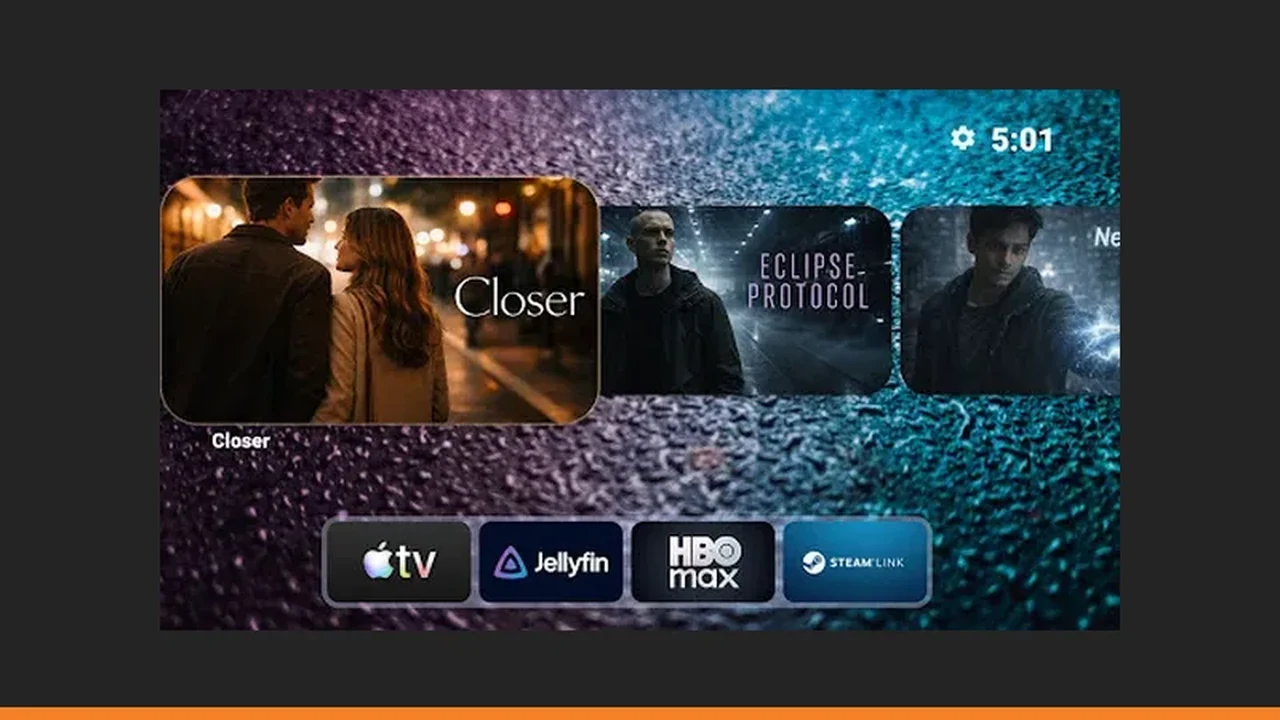
Most households need only three rows to start: one for streaming, one for live TV, and one for tools. Put the row you open every evening at the top and leave the rest below it. A short home screen is faster with a remote than a complete one, because every extra row is another press on the down button.
Name rows for people, not apps
Name a category for the person who uses it, not for the brand inside it. A row called Films is easier for guests than a row named after one streaming app, and a row called Kids is clearer than a row of cartoon app names. When a visitor can read the row and know what is in it, the home screen is doing its job. See also the Projectivy Launcher setup guide for the step by step version.
Channels versus categories
Categories hold apps. Channels hold rows of content from an app, such as continue watching items. Keep the two jobs separate: use categories to find an app quickly, and use one channel row for the show you are in the middle of. If a channel row goes stale, hide it for a week rather than deleting the whole category around it. Pair this with the home screen customization guide when you rebuild the rows. Get it from the Projectivy Launcher download page if you have not installed it yet.
Order by remote distance
Order rows by how far the remote must travel, not by how important an app feels in theory. The top row costs one press from the top of the screen. The fifth row costs five. Move the row you open first to the top, even if it feels less tidy than an alphabetical order, and demote anything you have not opened in a month.
Prune once a month
Once a month, open each row and ask whether anyone used it in the last few weeks. Move dead apps into a lower tools row instead of deleting them, so nothing is lost if someone asks for it later. A home screen that is pruned monthly stays fast, because Projectivy Launcher only has to draw the rows you actually use.
Quick Answers
How many categories should I start with?
Start with three: streaming, live TV, and tools. Add a fourth only when a row gets so long that finding an app takes more than a few remote presses.
Should channels or categories come first?
Put the row you open most at the top, whether it is a category or a channel. For most homes that is a continue watching channel or a films category.