
What Is Projectivy Launcher?
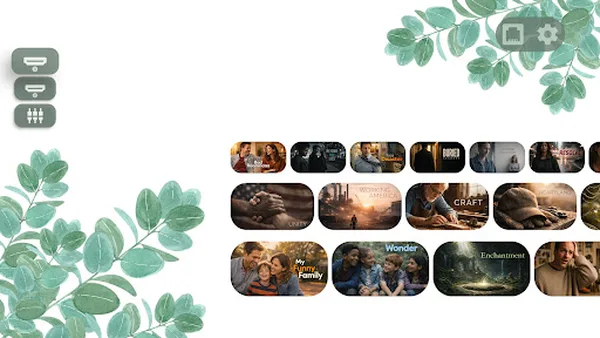
Projectivy Launcher is a customizable launcher for Android TV. It replaces the busy stock home screen with a clean, ad-free layout built around the apps and inputs you actually use. It works on a TV, a projector, or a set-top box, and it is designed to be driven with a remote, not a touchscreen.
The idea is simple: your TV home screen should show your apps, your categories, and your wallpaper, and nothing else shouting for attention. Projectivy Launcher keeps that promise, and it stays fast on hardware that is far from new.
Key Features
- Ad-free home screen. No promoted rows and no sponsored tiles between your apps.
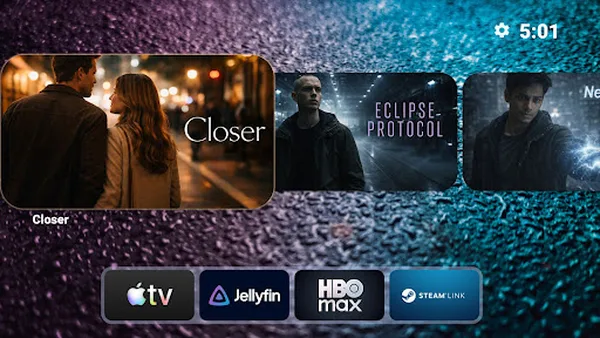
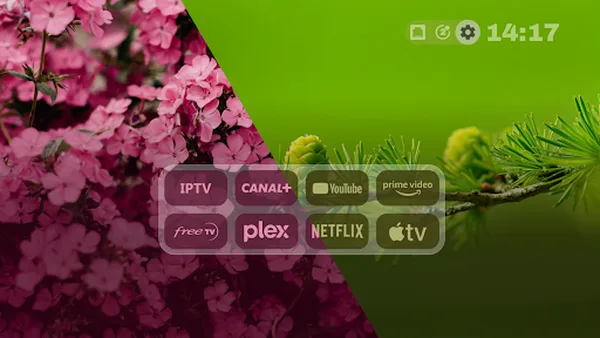
- Categories and channels. Group apps into categories and arrange them in rows that match how your household watches.
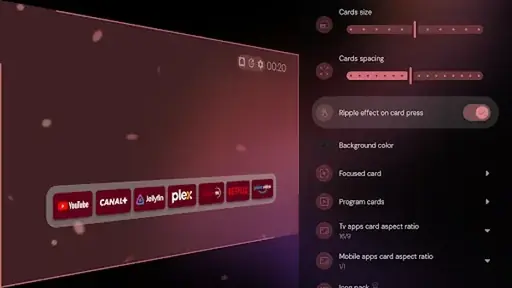
- Flexible layouts. Adjustable spacing and styles let a small app collection look tidy and a large one stay scannable.
- Custom icons and shortcuts. Change app icons, rename apps, and add shortcuts to the things you open every day.
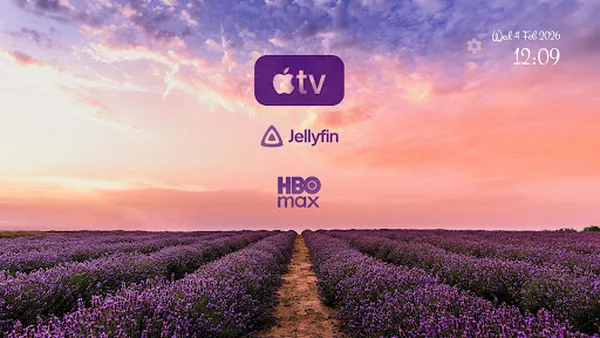
- Dynamic wallpapers. Use images, animated backgrounds, or video, and tune brightness, contrast, saturation, hue, and blur to fit the room.
- Input source shortcuts. Jump straight to an HDMI or AV input from the home screen instead of digging through TV menus.
- Display calibration patterns. Built-in patterns, including 4K and judder tests, help you fine-tune your display settings.
- Easy backups. Save your layout and preferences so a reset or a new TV does not mean starting over.
Customize Your TV Home Screen
Start with categories. Most households need only a few: streaming, live TV, games, and tools. Put the row you open first at the top, and move rarely used apps into a second row or a folder-like category where they stay out of the way.
Then fix the look. A dark wallpaper with low brightness suits a dim living room, while a brighter image works in a sunlit room. If text is hard to read, raise contrast before you change anything else. Small spacing changes make a bigger difference on a TV than on a phone, because every row is read from across the room.
Icons matter too. A consistent icon style makes the whole screen feel calmer. Rename apps to the names your household actually uses, so a child or a guest can find the right app without asking.
Remote and Input Shortcuts
A TV launcher lives or dies by its remote. Projectivy Launcher is built for directional navigation: up, down, left, right, and select. Keep your most used row closest to the top, and keep the number of rows low, so nobody has to scroll through five screens to reach the evening news.
Input shortcuts are the quiet superpower here. If your household switches between a set-top box, a console, and a streaming stick, a home screen shortcut to each input removes the most annoying part of TV ownership: the input menu hunt. Set one shortcut per input, label it plainly, and test it from the remote before you call the job done.
The launcher can also launch a chosen app or input on boot. That single setting turns a TV on into a TV ready to watch, which is exactly what guests and children need.
Parental Controls and Accessibility
Parental controls let you shape what younger viewers can reach. Hide categories or apps that are not for children, and keep the child-friendly rows at the top where small hands can reach them with the remote. A tidy home screen is itself a safety feature: fewer tempting tiles means fewer accidental opens.
Accessibility options help everyone in the room. Larger, clearer labels, a high-contrast wallpaper, and a simple row order make the TV usable for older viewers and for anyone watching from the far end of a long room. If a setting helps one person in the house, keep it, even if the rest of the household does not need it.
Performance on Older TVs
Projectivy Launcher is built for fast startup and smooth navigation, even on older devices. That matters because TV hardware ages slowly: a TV bought years ago is still the main screen in many homes, and its stock launcher is often the slowest part of it.
To keep an older TV feeling quick, keep the home screen lean. Use still wallpapers instead of video, limit the number of rows, and remove apps you no longer open. If navigation ever feels heavy, a simpler wallpaper and fewer categories will usually fix it faster than any other change.
Safety and Verification
This site does not host an app file, and it never asks you to install a file from an unknown source. Projectivy Launcher is obtained from Google Play, which is the only download destination linked on this site. Installing from Google Play means the app is tied to your Google account, updates arrive through the store, and you can uninstall it like any other TV app.
Before you install, check three things on the store listing: the app name, the package name com.spocky.projengmenu, and the rating shown on this page. If any of those look different, stop and recheck the link. Our review process is described in full on the how we review APKs page, and our reviewer is Alex Rivera.
Technical Details
Projectivy Launcher is a launcher for Android TV devices. It replaces the default home screen experience, supports custom wallpapers including animated backgrounds, and offers calibration patterns for display tuning. Some features, such as custom wallpapers and advanced icon customization, require a premium upgrade, while the core launcher experience is free.
The launcher includes an optional accessibility service used only to improve navigation through remote control shortcuts. According to the store listing, no data is collected or shared through that service. Engineering menu access is offered where the device supports it, and input source shortcuts depend on the TV or box hardware.
How to Install Projectivy Launcher
- Open the Projectivy Launcher download page and use the official Google Play link there.
- On Google Play, confirm the app name and the package name com.spocky.projengmenu, then install it on your Android TV device.
- Open Projectivy Launcher and follow the on-screen steps to set it as your default launcher.
- Arrange your apps into categories, pick a wallpaper, and add input shortcuts for the sources you use.
- Back up your layout once it looks right, so you can restore it after a reset.
For a slower walkthrough with screenshots described in words, read our Projectivy Launcher setup guide.
Alternatives to Consider
The honest alternative is the stock launcher that came with your TV. It needs no install and no setup, and for a household with only two or three apps it may be enough. Its weakness is clutter: promoted rows and recommendations you cannot remove, and little control over layout.
Other TV launchers exist, but they vary widely in polish, update frequency, and remote friendliness. Before switching away from Projectivy Launcher, check whether the alternative is ad-free, whether it supports input shortcuts, and whether it is actively maintained. A launcher is the screen you see every time the TV turns on, so pick the one you can live with daily, not the one with the longest feature list.
Troubleshooting
- The launcher did not become the default. Open the launcher again and accept the default launcher prompt. On some TVs the setting lives in the system settings under the home app choice.
- An input shortcut does nothing. Check that the input exists on your TV and that the shortcut points at the right source. Hardware support varies by model.
- Navigation feels slow. Switch to a still wallpaper, trim extra rows, and restart the TV once. Older hardware benefits most from a lean layout.
- A wallpaper looks wrong. Adjust brightness and contrast first, then saturation. A bright wallpaper in a dark room usually needs lower brightness, not a new image.
More fixes live in our guide to fixing common Projectivy Launcher problems.
How to Update
Updates arrive through Google Play, like any other TV app. Open the store listing, install the update, and your layout and settings carry over. If you changed devices, restore from the backup you made in the launcher instead of rebuilding rows by hand.
After a major update, spend two minutes checking your categories and input shortcuts. Updates rarely change a layout, but a quick check beats discovering a missing shortcut on movie night.