
Guide
Projectivy Launcher Setup Guide: From Install to First Movie Night
Set up Projectivy Launcher in order: install from Google Play, set it as default, build categories, add input shortcuts, and back up the layout.

On this page
Setting up a TV launcher is a ten minute job when you do it in the right order, and a frustrating evening when you do it backwards. Start from Projectivy Launcher APK and follow this guide step by step, and your TV will be ready before the popcorn is.
Step one: install from Google Play
Open the Projectivy Launcher download page and use the official Google Play link. Confirm the app name and the package name com.spocky.projengmenu, then install it on your Android TV device. No sideloading and no unknown source setting is needed, because the app comes from the store.
Step two: set it as default
Open Projectivy Launcher and accept the prompt to make it your default launcher. If no prompt appears, open the TV system settings, find the home app choice, and select Projectivy Launcher. Until this step is done, pressing Home will keep returning you to the old home screen, which is the most common setup complaint.
Step three: build categories
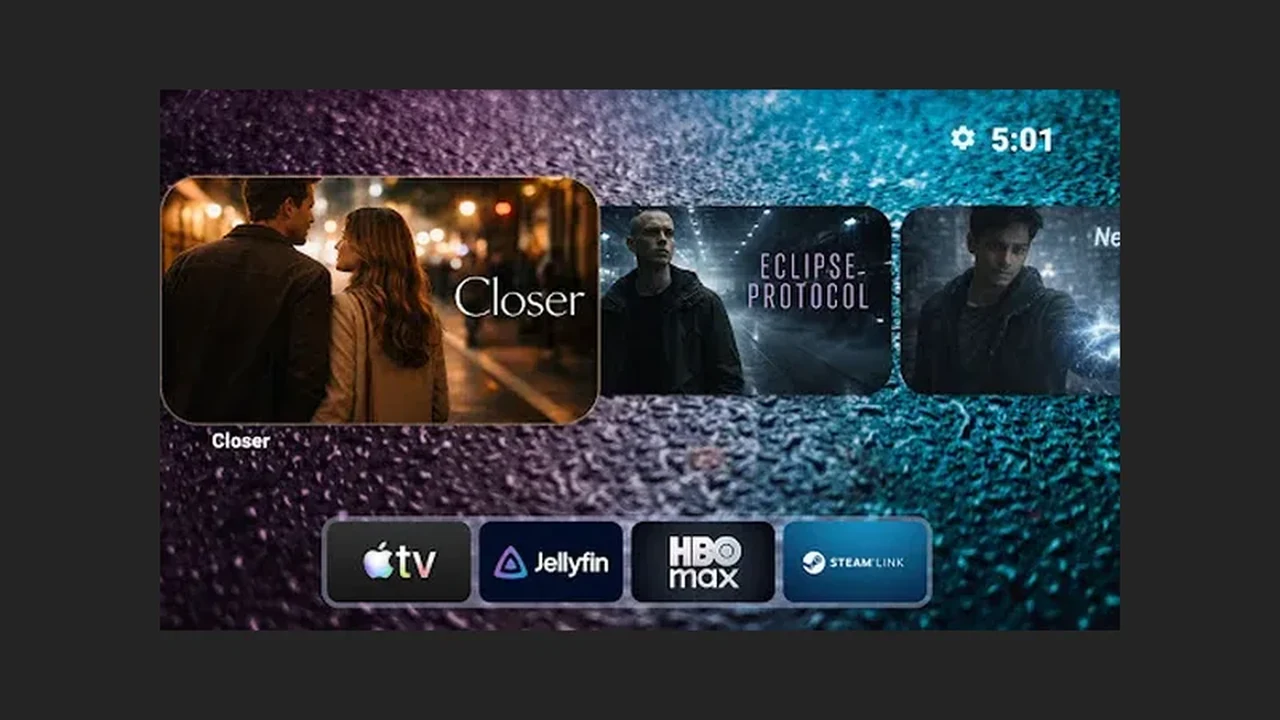
Create a few categories before you add every app you own. Streaming, live TV, games, and tools cover most households. Put the category you open first at the top. A short home screen beats a complete one, because the remote only moves in four directions and every extra row is a thumb workout.
Step four: add input shortcuts
Add one shortcut per input you actually use, and label each plainly, for example Set-top box or Console. Test each shortcut from the remote before you finish. Input support varies by hardware, so a shortcut that does nothing on one TV may work fine on another, as explained in our remote shortcuts guide.
Step five: back up the layout
Once the screen looks right, back it up in the launcher settings. A backup turns a future reset or a new TV from a rebuild into a restore. If you later change the look, our home screen customization guide covers wallpapers, icons, and spacing in detail.
Quick Answers
Do I need to sideload Projectivy Launcher?
No. It is installed from Google Play, so no unknown source permission is needed.
Why does Home still open the old launcher?
Projectivy Launcher is not yet set as the default home app. Open it and accept the default prompt, or choose it in the TV system settings under the home app choice.