
Guide
Projectivy Launcher Wallpapers: Animated Backgrounds, Tuning, and Calibration
Choose and tune Projectivy Launcher wallpapers, from animated backgrounds to brightness and blur, and use calibration patterns to fine-tune your display.

On this page
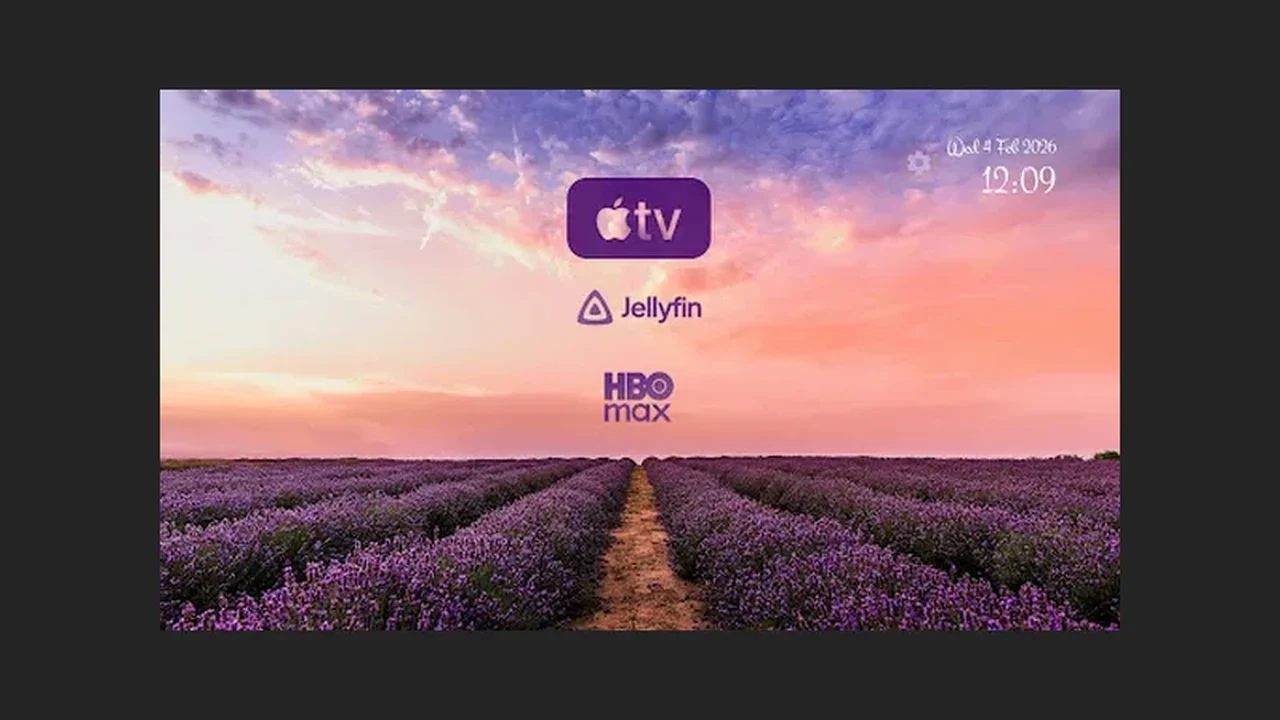
Wallpaper is the largest thing on your TV screen, so it deserves more thought than a random pretty image. This guide, starting from Projectivy Launcher app, covers choosing, tuning, and testing a wallpaper that helps the home screen instead of fighting it.
Choose the source
Projectivy Launcher supports images, animated backgrounds using GIFs or video, and plugin wallpaper sources. Start with a still image you already like, learn the tuning controls on it, and only then try an animated background. That order keeps troubleshooting simple: if something looks wrong, you will know whether the image or the animation caused it.
Tune it for the room
Use brightness, contrast, saturation, hue, and blur as a set, not one at a time. Lower brightness for a dark room, raise contrast if labels wash out, and add a little blur when a busy photo competes with app rows. Adaptive colours can match the interface to the wallpaper, which calms a loud image without replacing it.
Calibration patterns
Built-in calibration patterns, including 4K and judder tests, help you fine-tune display settings beyond wallpaper. Run a pattern after changing TV picture settings, not before, so you judge the final picture. If motion looks uneven, the judder pattern will show it more honestly than any film scene.
When to keep it simple
If navigation stutters, if labels are hard to read, or if guests keep asking where things are, the wallpaper is too loud. A quiet image and a short row order beat a spectacular background every time. For layout ideas, read our home screen customization guide, and for performance help see our fixes guide.
Quick Answers
Can I use a video as wallpaper?
Yes. Projectivy Launcher supports animated backgrounds using GIFs or video, plus plugin wallpaper sources.
What are calibration patterns for?
They help fine-tune display settings, including 4K and judder tests, so motion and sharpness can be judged on a known pattern.