
Guide
Projectivy Launcher Parental Controls: A Calmer TV for Children
Use Projectivy Launcher parental controls to shape what children can reach, keep child-friendly rows on top, and make the TV usable for the whole family.

On this page
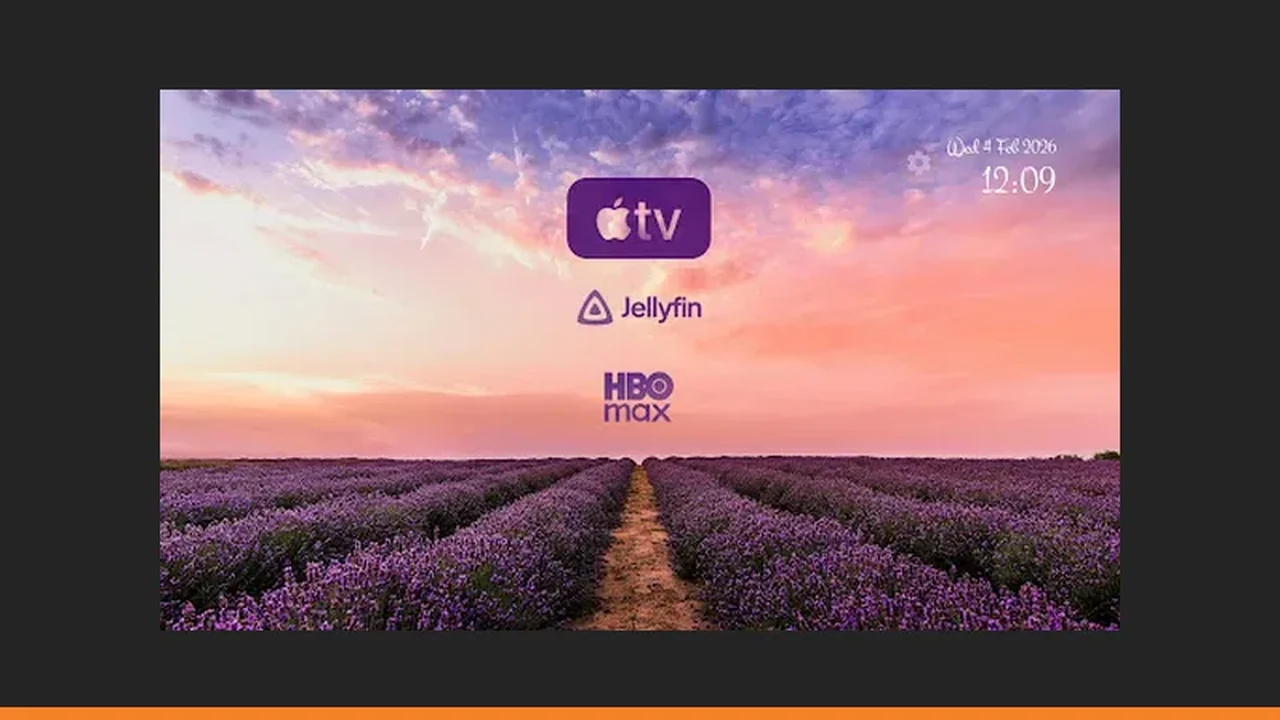
A child-friendly TV is not a locked TV. It is a TV where the right things are easy to reach and the wrong things are out of sight. Start from Projectivy Launcher TV launcher and build the home screen around the youngest viewer in the room.
Hide what is not for children
Move apps that are not for children into a category that sits lower down or out of the main rows. Out of sight is surprisingly effective with young viewers, because children open what they can see. A tidy home screen is itself a safety feature.
Put children first
Put the child-friendly category at the top, with short plain names and clear icons. A child should be able to reach cartoons with a few remote presses and no help. Test it by handing the remote to the child and watching, without guiding, for one minute.
Accessibility for everyone
The same choices help older viewers too: larger clear labels, a high-contrast wallpaper, and a simple row order. If a setting helps one person in the house, keep it. Accessibility options in Projectivy Launcher exist for exactly this kind of household, not for a checklist.
Review it regularly
Children grow, and so should the home screen. Review the categories every few months, promote apps the child has grown into, and retire rows nobody opens. Pair this with our setup guide when you rebuild rows, and our fixes guide if a hidden app seems to vanish entirely.
Quick Answers
Does Projectivy Launcher have parental controls?
Yes. Parental controls are listed among its features, and they pair with categories and hidden rows to shape what younger viewers can reach.
How do I hide an app from children?
Move it into a lower category or out of the main rows, so it is not visible on the first screens a child navigates.